
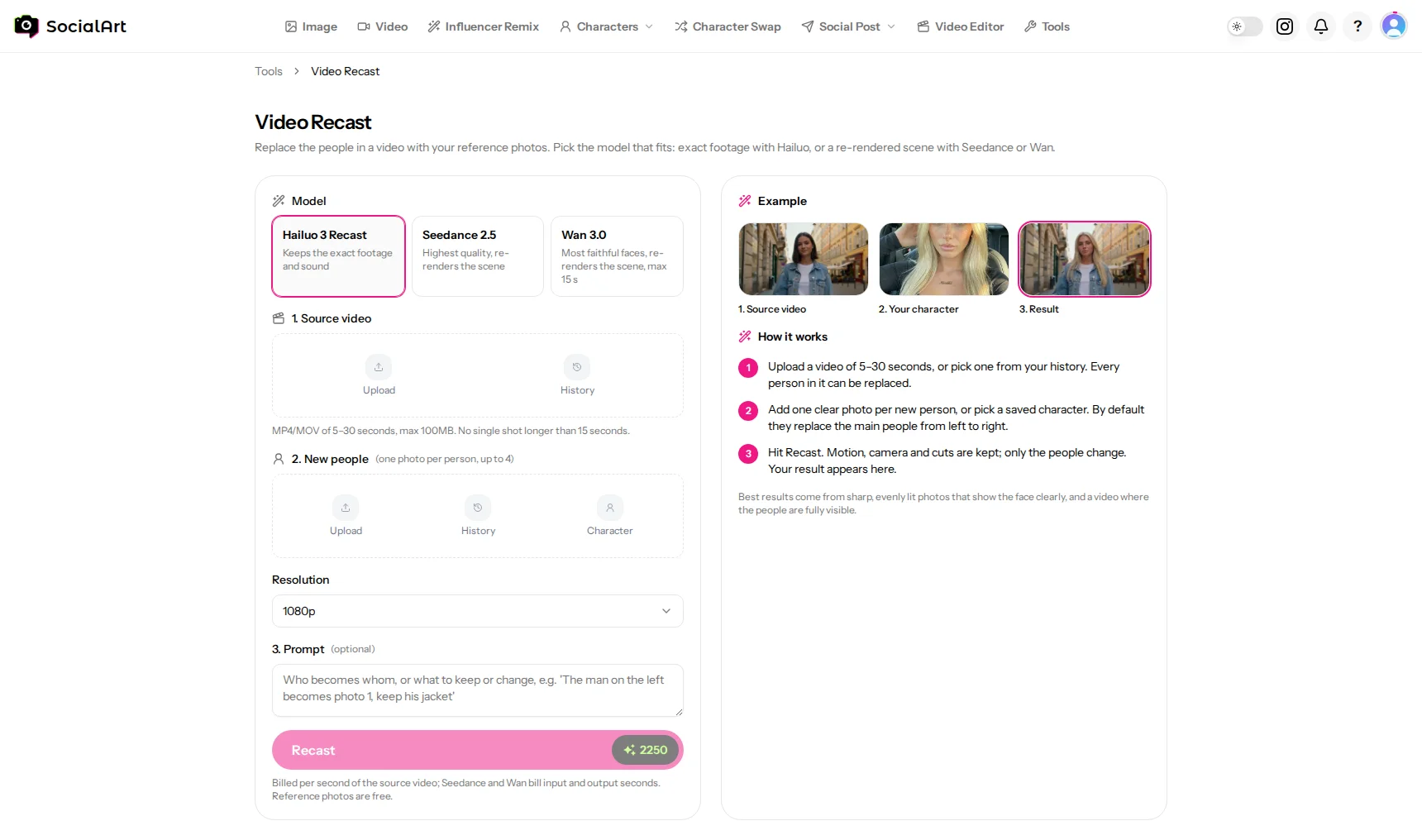
Video Recast replaces the people in a video with the people from your reference photos. Pick the model that fits the job: Hailuo 3 Recast keeps the original footage and sound exactly as they are and only swaps the people; Kling 4.0 edits your own footage, swaps only the people and makes new sound; Wan 3.0 Prime re-renders the scene from your video, at the cost of small differences in the footage and new sound, keeps the faces closest to your photos and is the recommended model for the best results, with videos up to 60 seconds. Open it from the Tools page, or pick Hailuo 3 Recast or Kling 4.0 (Edit) as a model in the Video Studio.
Models
| Model | What stays the same | Source length | Resolutions |
|---|---|---|---|
| Wan 3.0 Prime | Motion, camera and cuts, re-rendered | Any length; you pick a window of 2–60 s (up to four segments of at most 15 s) | 480p, 720p, 1080p |
| Hailuo 3 Recast | Footage, camera, cuts and the original sound | Any length; you pick a window of 5–30 s | 768p, 1080p |
| Kling 4.0 | Footage, camera and cuts; new sound | Any length; you pick a window of 3–30 s | 720p, 1080p |
Hailuo needs every single shot to be 15 seconds or shorter. Wan 3.0 Prime renders at most 15 seconds per pass; longer footage is handled in segments (see The timeline and the cuts). The maximum file size is 100 MB for every model. Kling 4.0 needs a video of at least 700 pixels on its shorter side (720p or higher), with its longer side at most 2.5 times its shorter side, at 24 to 60 frames per second. The generate button shows the cost of the chosen model and resolution before you start; Kling and Wan bill the length of your video as input and as output.
In three steps
- Source video. Upload an MP4 or MOV, or pick one from your video history. With Wan 3.0 Prime the video can be of any length: you choose a window of up to 60 seconds, and a window longer than 15 seconds is recast in segments of at most 15 seconds. A video of 15 seconds or less is recast whole unless you narrow the window to a part of it. With Hailuo 3 Recast and Kling 4.0 you choose one window of up to 30 seconds, recast in one pass; a video of 30 seconds or less is recast whole unless you narrow the window. The length and size limits of the chosen model are shown on the page (see Models).
- New people. Add one photo per person that should appear in the video: upload, pick from your image history or choose a saved character. Up to 4 photos. By default the photos replace the main people in the video from left to right, in every shot they appear in. The best photo shows the face up close and the whole outfit, for example a collage of a close-up, a half shot and a full shot of the same person.
- Generate. Choose the model and the output resolution, optionally describe who becomes whom or what to keep or change, and hit Recast. The result appears on the page after a few minutes and is saved to your video history under the chosen model.
The timeline and the cuts
After the upload a timeline with a filmstrip of your video appears right under the preview, and a hand shows once where to drag: the start handle, the cuts if there are any, and the end handle. Drag the start and end handles to choose a window of up to 60 seconds with Wan or 30 seconds with Hailuo and Kling, or drag inside the window to move it as a whole; the handles stop at the shortest window the model takes (2 seconds for Wan, 3 for Kling, 5 for Hailuo). On a video longer than about 86 seconds with Wan, or 43 seconds with Hailuo and Kling, the timeline is zoomed in, so the longest window fills most of its width: drag the window or a handle past the edge and the timeline rolls along, and a thin overview bar above it shows the whole video, where you click or drag to jump to another part. While you hover over or drag a handle or a cut, a preview of that exact frame pops up over the video, and the times are shown to a tenth of a second. Playing the preview plays only your window: a white playhead runs along the timeline and the video stops at the end of the window. Until you have dragged them once, the start handle, every cut and the end handle each keep a pulsing ring, and on a touch screen they are larger, so a finger can take them. Under the timeline each segment shows its length and cost.
Hailuo 3 Recast and Kling 4.0 recast the whole window in one pass and never need a cut. Their window is cut from your video and recast as one job: the page shows its progress, and the result keeps the sound the model gives it (Hailuo the original sound, Kling new sound).
Wan renders at most 15 seconds in one pass. A video of 15 seconds or less starts with the whole video in the window and is recast in one pass, without a cut; drag the handles to recast only part of it.
A window longer than 15 seconds is too long for one pass, so it gets cuts: one in the middle up to 30 seconds, two up to 45 seconds and three up to 60 seconds, so every segment is at most 15 seconds. The segments are recast one after the other and joined back into one video. Drag a red marker to move its cut; every segment stays between 2 and 15 seconds. While a segment is long enough, Add cut splits the longest segment in two (up to three cuts). The red "Why a cut here?" link under the first cut line explains this on the page. Put every cut on a moment where the face (or object) is clear and frontal and the motion is calm: each segment starts from the last frame of the recast segment before it, which is the frame at that cut, together with your photos, so the clearer that frame is, the more consistent the next segment looks. Removing a cut joins the two segments around it; when they are longer than 15 seconds together, the window is shortened by the difference and the later segments keep their length. A window of at most 18 seconds is only just over one pass, so the page suggests recasting 15 seconds without a cut, which gives the smoothest result, and offers a button that does it.
Every segment before a cut is rendered up to half a second past it, never more than 15 seconds in one pass. When the segments are joined, each one is trimmed to its planned length, so the joined video switches to the next segment exactly at your cut. The generate button includes the extra footage in the cost. Motion and camera come from your footage, so the segments line up.
The page shows the progress per segment and joins the results into one video with the original sound of your clip; a clip without sound keeps the sound Wan made for the segments. Only the joined video appears in your history. You can leave the page: a running recast is shown again when you come back, also on another device, with the time each segment has been running, and the video studio shows it at the top with a link back to its progress. You can start another recast while one runs; both keep going, and the page lists the earlier one under the latest. The whole job is paid when you start it and the generate button shows the total. If a later segment fails, you keep the segments before it, joined into one video; the credits for the failed segment and the ones after it are returned, and a Retry button generates only those segments again and joins them to what you already have. If the first segment fails, nothing is delivered and the whole job is refunded.
Good to know
- Cost: billed per second of the source video and shown on the generate button before you start; a higher resolution costs more per second. Reference photos are free. Failed generations are refunded automatically.
- Extra instructions are optional. Use them to assign photos to people or to keep details such as clothing or a hairstyle. With more than one person, name each one by how they look rather than by left or right, because people move but their clothes stay: "the man in the beige shirt becomes photo 1, the man in the green polo becomes photo 2". With Kling and Wan the tool always tells the model to replace the people in the video with the people from your photos, from left to right, to make each new person look exactly like their photo (face, hair and skin tone, also on the hands and arms), and to drop tattoos and rings of the original people; your text is added to that. Body and clothing sets where the body shape and clothing come from: from the video (the default, which stays the same across the cuts), from the photos (best with a photo that shows the whole outfit), or as you describe it in the extra instructions, in which case the tool adds nothing about it. The faces always come from the photos. Hailuo is built for this job and receives your text as you wrote it.
- Best results come from sharp, evenly lit photos that show the face clearly, and a source video where the people are fully visible.
- Hailuo keeps the source audio. Kling and Wan generate their own sound for the result; a segmented Wan recast gets the original sound of your clip back under the joined result, when the clip has sound.
- Results land in your video history, where you can download them, add them to albums, reuse them in the Video Editor or post them with Social Post.
Related
- Saving characters: Characters
- Replacing a person in a photo: Character Swap
- All tools: Tools