
Social Post: Publish & Schedule AI Content Straight to Instagram
Make it here. Post it here. Social Post connects your Instagram accounts to SocialArt.ai so the image or video you just generated goes straight to your Feed, Reels or Stories — right now or on a schedule — without ever leaving the app.
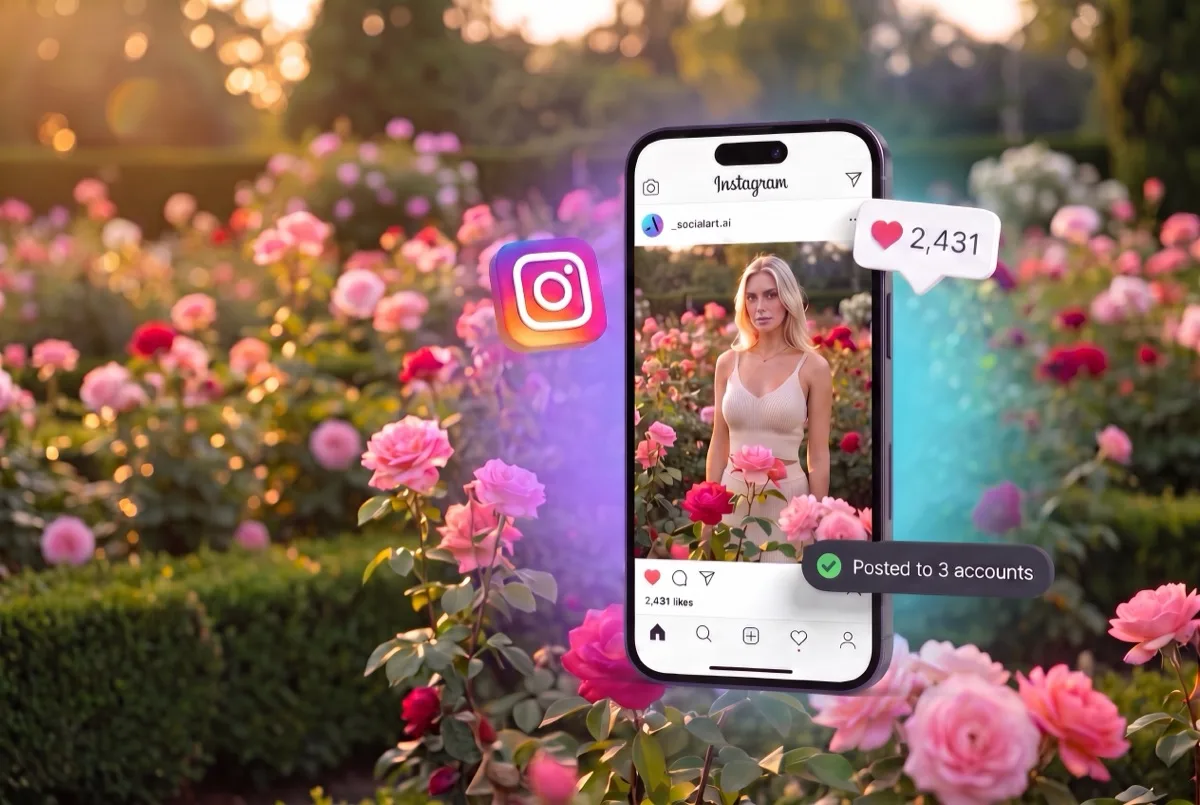
One post, every account you run — published directly from the studio.
Where to find it: log in to SocialArt.ai, open Tools in the studio navigation and click the Social Post card. That is where you connect accounts, write posts and open the calendar.
You know the last mile. Download the file. Mail it to yourself. Open it on your phone. Find the caption you wrote somewhere else. Post it. Repeat for the second account. Everything before that step got faster this year — generating a scroll-stopping image now takes seconds. That last step did not.
So we removed it. Social Post is an Instagram scheduler and publishing tool built into SocialArt.ai. Connect the accounts you run, pick media from your studio, write one caption, and publish to all of them at once — or put it on the calendar and close the tab.
How to Post to Instagram from SocialArt.ai
Connect your Instagram accounts
In the studio, open Tools in the top navigation and pick the Social Post card. Go to Accounts, hit Connect Instagram and sign in. Your own brand, your client's, the second one you started last month — there is no limit on how many you connect, and each keeps its own connection.
Compose once
Pick your accounts, pick your media, write the caption. A live Instagram preview sits next to the composer so you see the crop before your audience does.
Post now or schedule it
Hit Post now and it is live on every selected account. Or flip the schedule toggle, pick a date and time, and SocialArt.ai publishes it for you — tonight or in three months.
What You Get with Social Post
1 Unlimited Instagram accounts that stay connected
Connect every account you manage. Access tokens renew themselves in the background, so you are not reconnecting every two months, and the Accounts page shows exactly how many days each connection has left. One requirement from Instagram: publishing through the API only works from Professional accounts (Business or Creator). Switching is free and takes about a minute in the Instagram app.
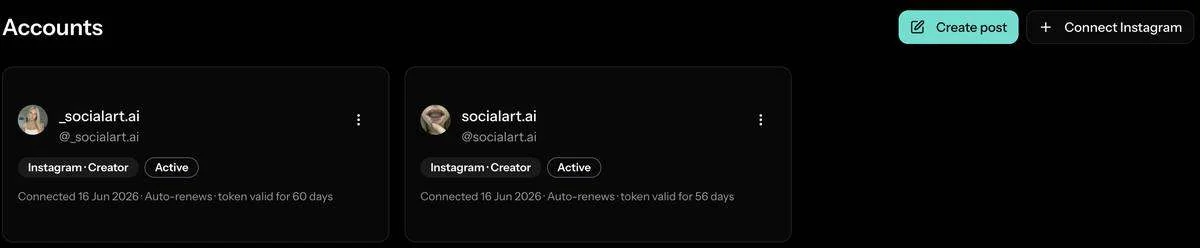
Every connected account shows its status and how long the token is valid — it renews itself.
2 Feed, Reel or Story — with real Instagram limits
Choose the post type and the composer adapts. Feed posts take a single image or video or a carousel of up to 10 items, which you reorder by drag and drop. Reels and Stories take one video or image. Captions run up to 2,200 characters, with an emoji picker and a location tag for Feed posts.
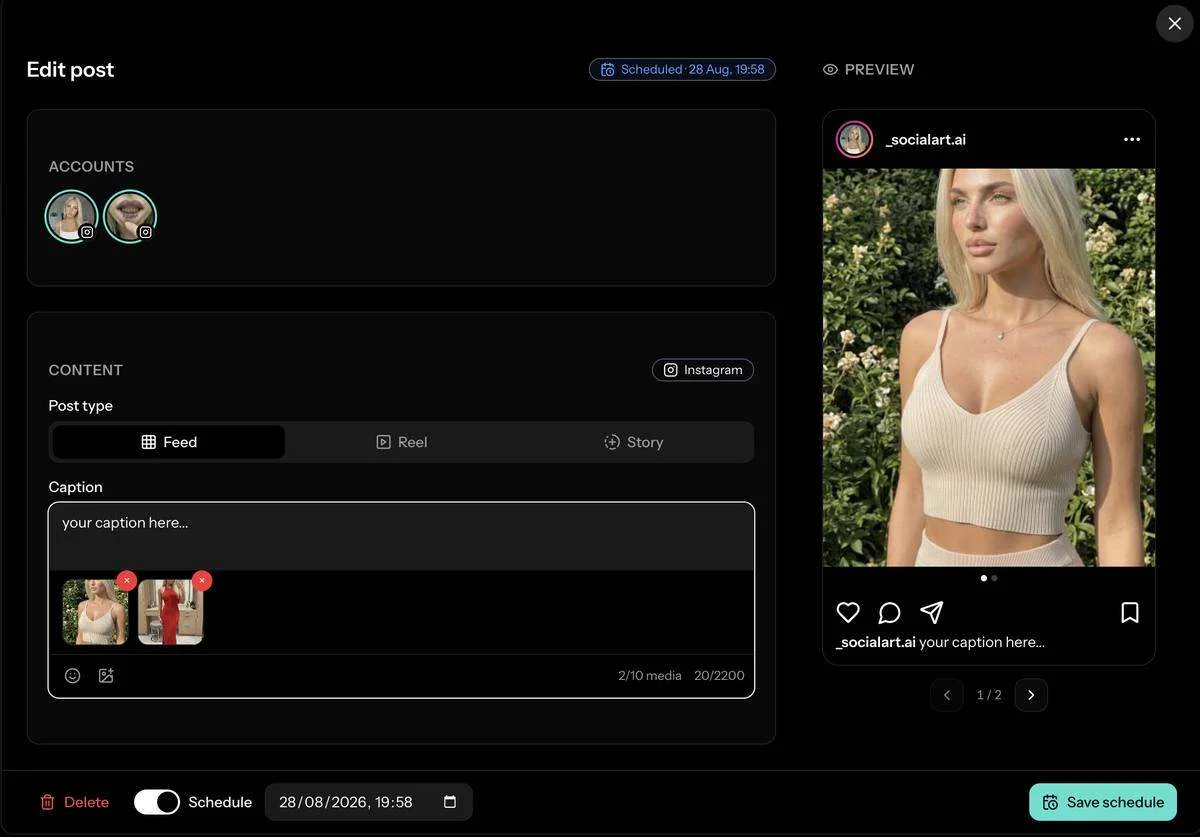
Accounts, post type, caption and media on the left — the live Instagram preview on the right.
3 Your studio is the media library
The media picker shows every image and video you generated in SocialArt.ai — from Nano Banana and Seedream stills to Kling and Seedance clips. Nothing to download, nothing to re-upload. Need a real photo in the mix? The upload tab takes your own images (up to 8 MB) and videos (up to 100 MB) too.
4 Write once, publish everywhere
Select five accounts and it publishes to five. Each account publishes on its own: if one of them fails, the other four still go out and only that one asks to be retried. You never resend a post to people who already saw it. Every post keeps a per-account status so you can see at a glance what is live, scheduled or waiting for a retry.
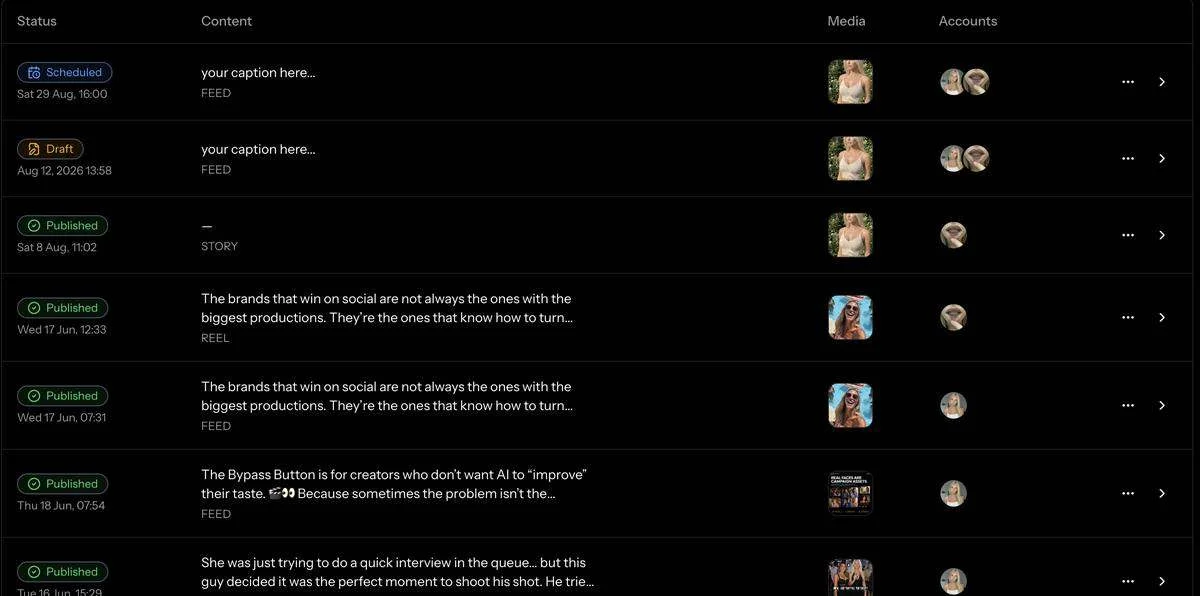
Drafts, scheduled and published posts in one list, with the accounts each one went to.
5 A calendar for scheduling Instagram posts
Month and week views show drafts and scheduled posts side by side. Hover any future day or hour, hit the plus, and the composer opens with that slot prefilled — so batching a week of content is a single sitting. Scheduled posts go out at the minute you picked, and you can edit or unschedule them right up until then.
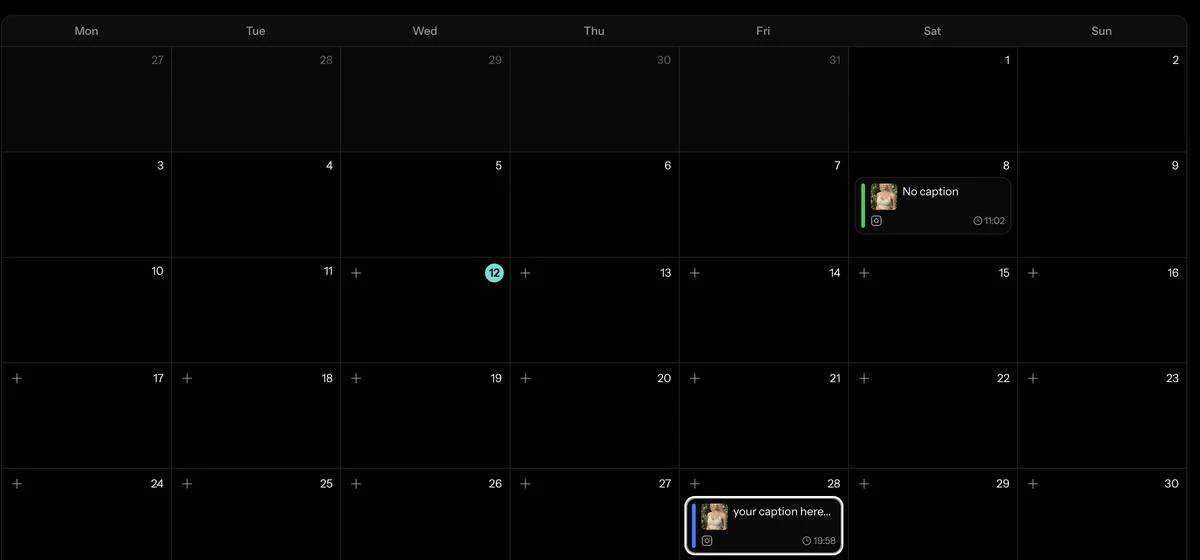
Month view: published and scheduled posts on their day, a plus button on every future slot.
6 Drafts, duplicates and retries
Save a draft and come back later. Duplicate a post that worked and swap the media. Retry a single failed account without touching the ones that succeeded. Small things, but they are the difference between a tool you tolerate and one you actually use every day.
Who Social Post Is For
Creators
Generate, caption and post from one place. Keep your feed consistent without a second app.
Agencies & freelancers
Run every client account from a single composer. One caption, many accounts, per-account status.
Brands & e-commerce
Turn product renders into carousels and schedule a month of launches in one sitting.
AI influencers
Pair Influencer Remix with Social Post and keep a virtual character posting on a steady schedule.
Video makers
Publish Reels straight from the video studio — Kling, Seedance, Veo and more.
Multi-account operators
Running several niches? Connect them all and stop switching accounts on your phone.
Frequently Asked Questions
What is Social Post?
Social Post is the Instagram publishing and scheduling tool built into SocialArt.ai. Connect your Instagram accounts, pick media from your studio or upload your own, write one caption and publish or schedule it to every account at once — as a Feed post, Reel or Story.
Where do I find Social Post in SocialArt.ai?
Log in, open Tools in the studio navigation and click the Social Post card. From there you connect Instagram accounts under Accounts, create posts under Posts and plan them in the Calendar.
Which Instagram accounts can I connect?
Instagram only allows API publishing from Professional accounts, so you need a Business or Creator account. Switching a personal account to Professional is free and takes about a minute in the Instagram app. There is no limit on how many accounts you connect.
Can I schedule Instagram posts in advance?
Yes. Flip the schedule toggle in the composer, pick a date and time, and Social Post publishes it for you — whether that is tonight or three months out. A month and week calendar shows your drafts and scheduled posts side by side.
Can I post to multiple Instagram accounts at once?
Yes. Select as many connected accounts as you like and one post goes out to all of them. Each account publishes independently, so if one fails the others still go live and only the failed one asks to be retried.
Do I have to use AI-generated images?
No. The media picker shows everything you generated in the SocialArt studio, but it also has an upload tab for your own photos and videos — images up to 8 MB and videos up to 100 MB.
What post types and limits does Social Post support?
Feed posts with a single image or video or a carousel of up to 10 items, Reels and Stories. Captions can be up to 2,200 characters, and you can tag a location on Feed posts.
Make it here. Post it here.
Connect your Instagram accounts and publish your next post straight from SocialArt.ai. Feed, Reel or Story — now or on a schedule.
Share this article
Related Articles
Influencer Remix: AI-Powered Influencer Content — No Prompt Needed
Upload your character and let AI create stunning influencer-style scenes automatically.
Prompt Agent: Your AI Assistant for Perfect Image & Video Prompts
Describe your idea in plain words and get a polished, model-ready prompt in seconds.