
Video Editor: Cut, Caption and Export AI Videos in Your Browser
Generating a great clip is step one. Turning five of them into a Reel with a title, a music bed and the right crop used to mean leaving the studio. The SocialArt.ai video editor puts a multi-track timeline next to your generations, so you cut, caption and export without ever downloading a file.
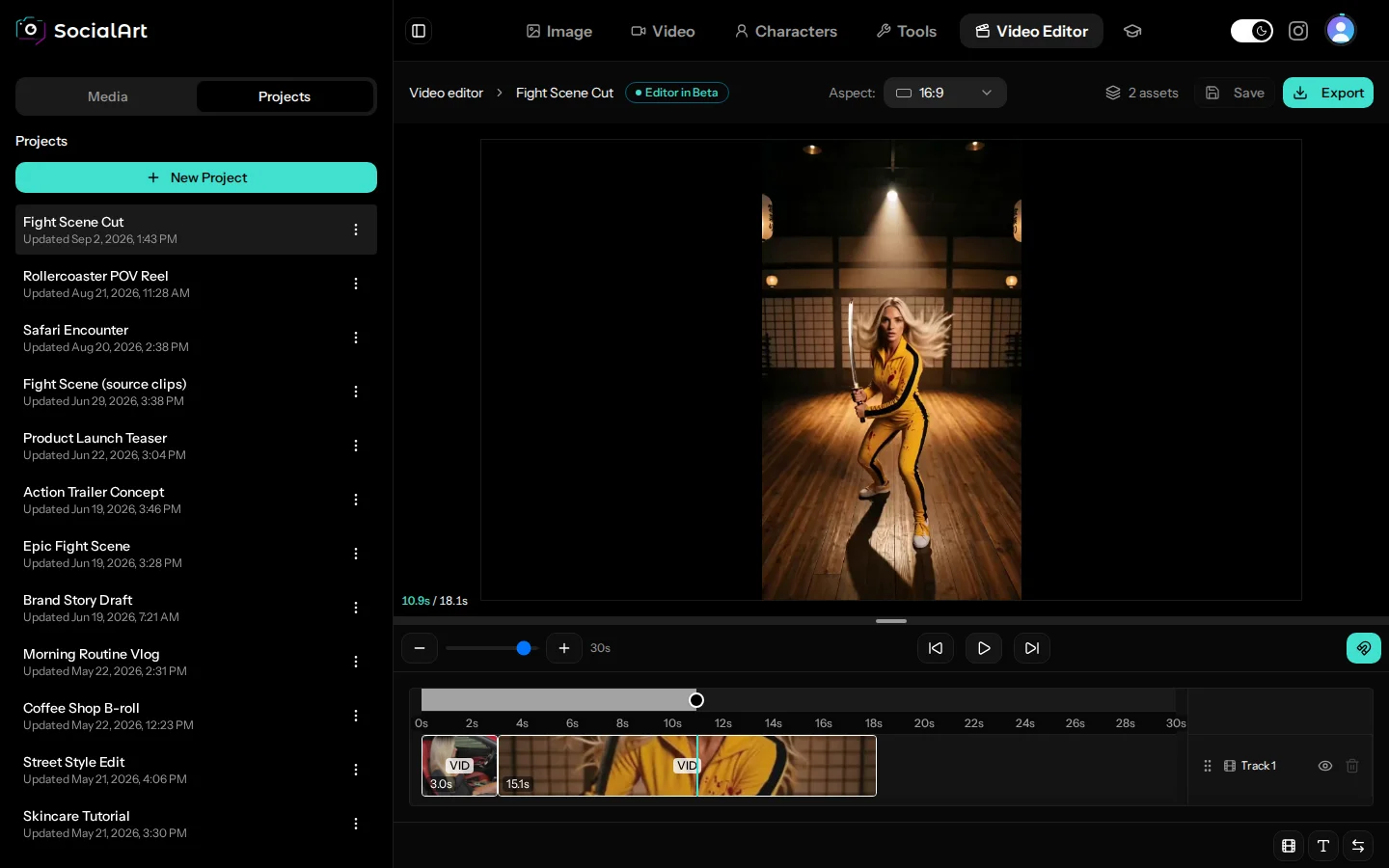
Your projects, the preview and the timeline in one screen — no software to install.
Where to find it: log in to SocialArt.ai and click Video Editor in the studio navigation, or hit Open editor above your video history. The editor is in beta and built for desktop.
Most AI video tools stop at the clip. You get a beautiful eight seconds, and then it is on you to find an editor, import everything, match the aspect ratio, add a title, drop in music and export something a platform will accept. That round trip is where good ideas stall.
The video editor closes that loop. Every image and video you generate in SocialArt.ai is already in its library. Click a clip to put it on the timeline, layer text over it, add a voice or a track, snap it all into place and export at up to 2K. If you want it on Instagram, Social Post is one click further.
How to Edit a Video in SocialArt.ai
Add clips from your library
The Media tab shows your generated images and videos, your own uploads and your audio. Click a tile and it lands on the timeline at the playhead. Images get three seconds by default, videos keep their real length.
Arrange, cut and caption
Drag clips into order, trim their edges, split at the playhead, add a text track for the title and an audio track for the music. Pick the aspect ratio for the platform you are posting to and position everything on the preview.
Export and post
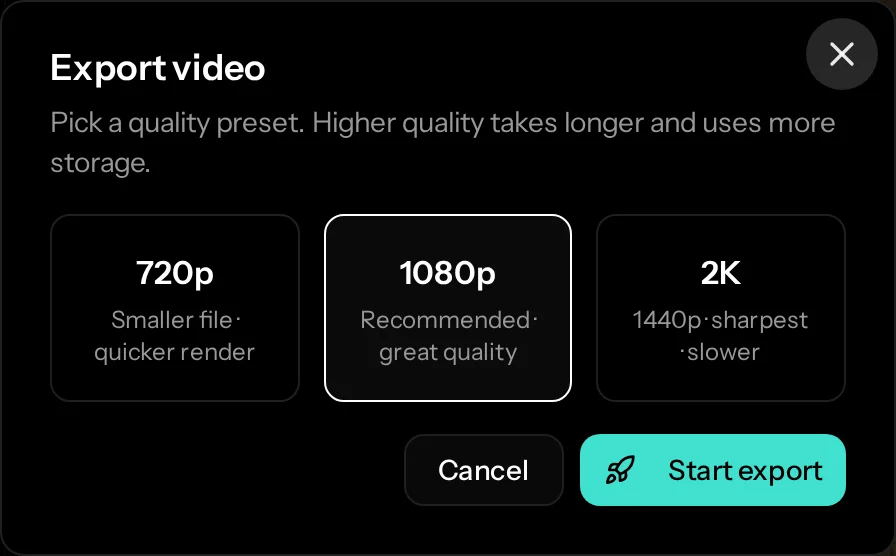
Hit Export, choose 720p, 1080p or 2K, and watch the progress in the banner. The finished video lands in your Video Studio history, ready to download or to publish with Social Post.
What You Get with the Video Editor
1 A real multi-track timeline
Up to five media tracks, two text tracks and two audio tracks. Layer an image over a video, keep the title on its own track, and put the music underneath. Reorder tracks by dragging their handle, hide a track while you work, mute an audio track, and rename any of them with a double-click. Clips move freely between tracks, and everything you do is reflected in the preview instantly.
2 Text overlays that look designed, not pasted on
Click the T button and a text clip appears on its own track. Choose from six fonts (Inter, Bebas Neue, Anton, Pacifico, Permanent Marker and Playfair Display), set size, weight and alignment, pick a colour, add a stroke for readability over busy footage, or switch on a background box with its own colour and padding. Then drag, resize and rotate the text right on the preview.
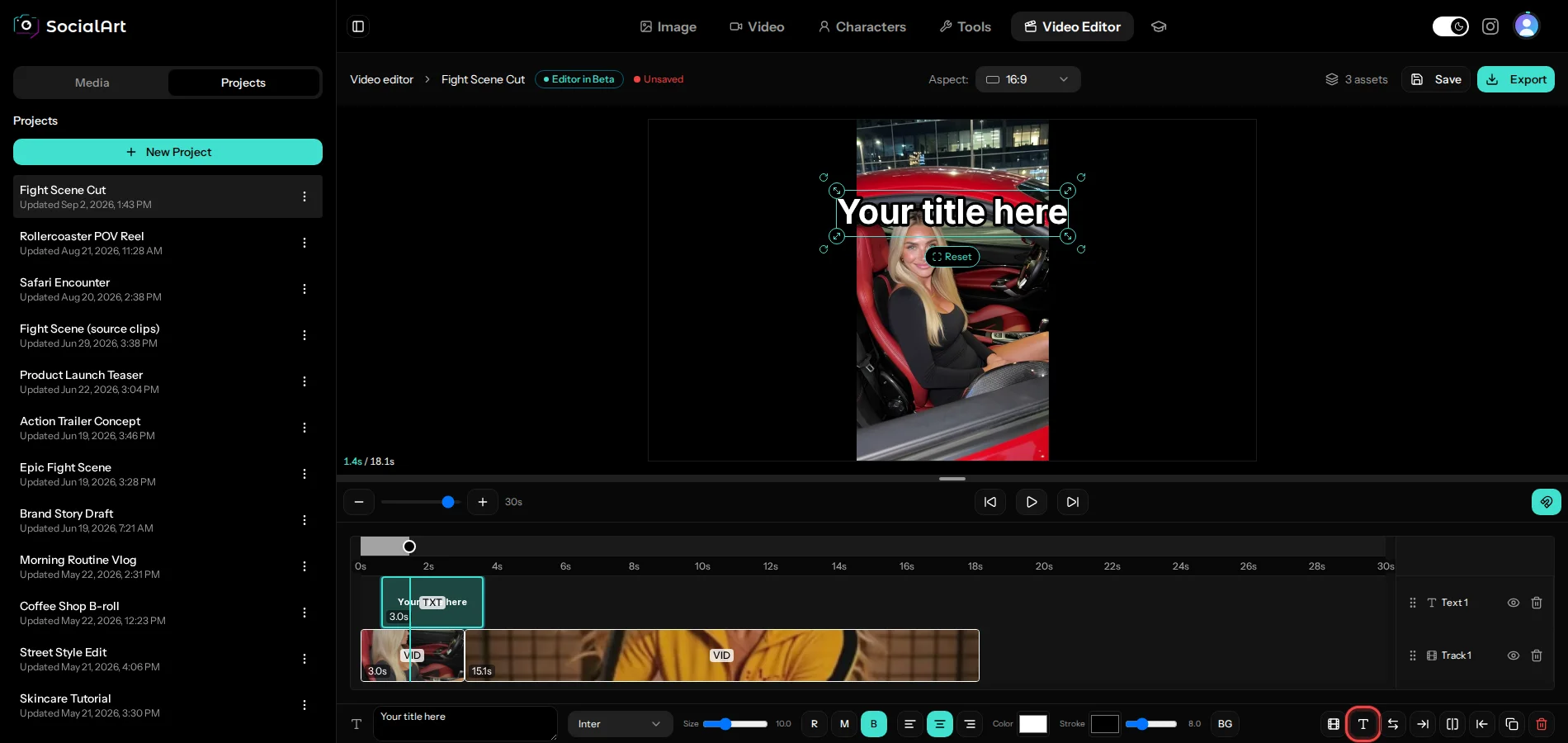

One click adds a title; the toolbar underneath styles it.
3 Precision cutting with magnet snap
Select a clip and the toolbar gives you split at playhead, trim start or end to the playhead, duplicate and delete. Magnet snap makes clips stick to each other and to the playhead while you move or trim them, and shows guide lines when you align something on the canvas. Turn it off for free placement, or switch on sort mode to swap two clips by dropping one onto the other.

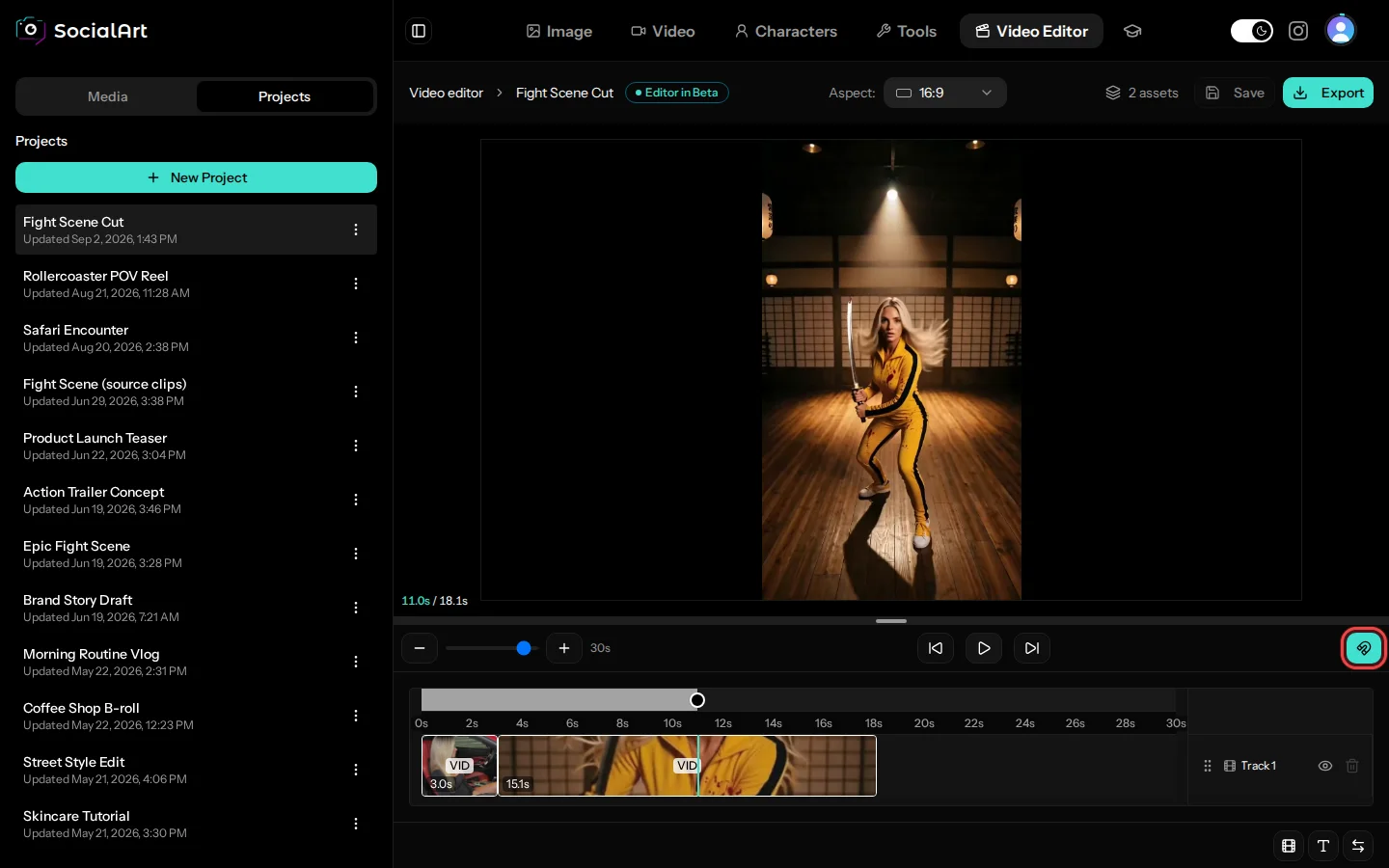
The magnet button next to the playback controls toggles snapping for the timeline and the canvas.
4 One edit, every format
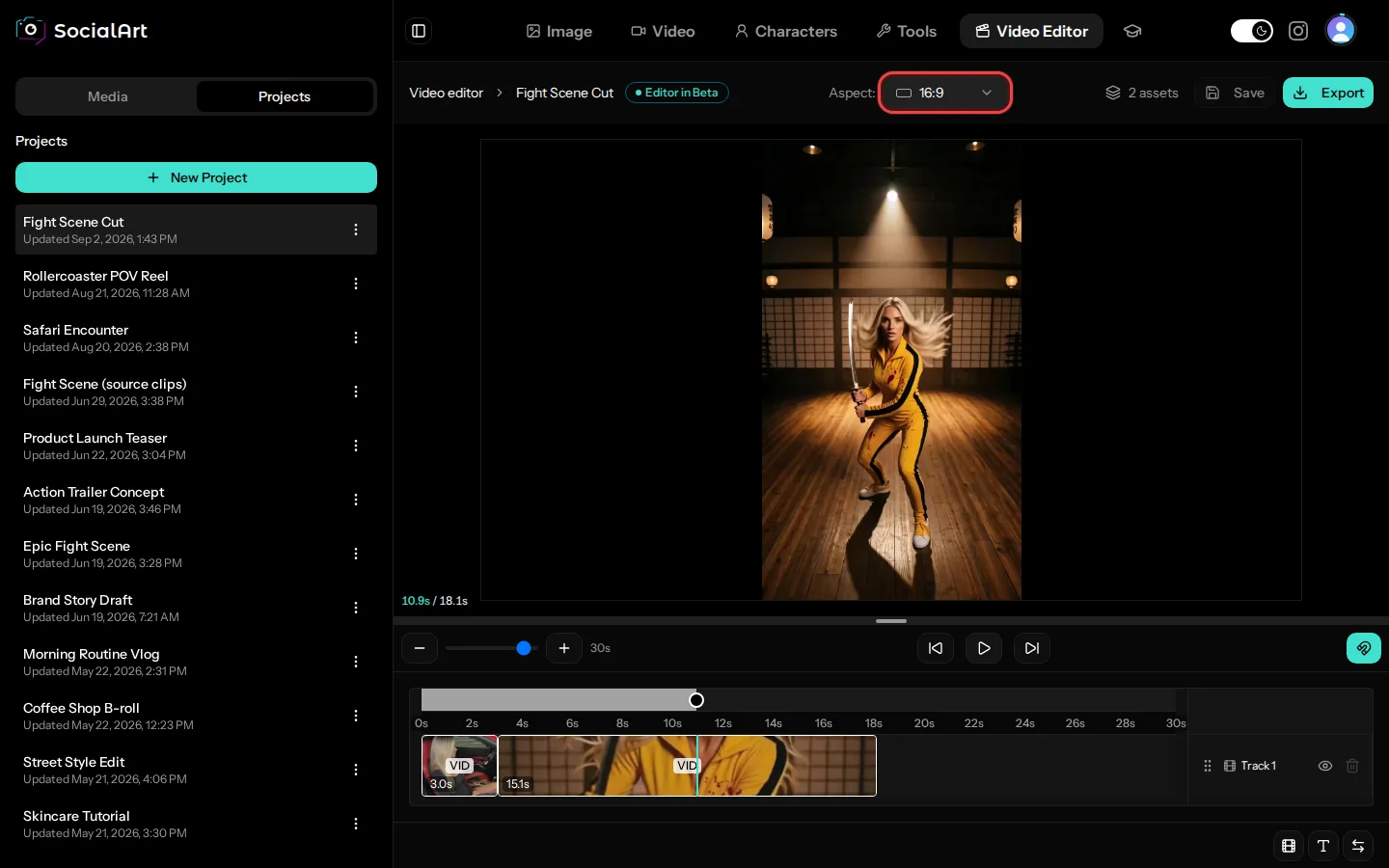
Pick 16:9 for YouTube, 9:16 for Reels, TikTok and Shorts, 1:1 for the feed, or 4:3 and 3:4 when you need them. Switch at any time: every clip and text box is refitted to the new canvas, and you fine-tune position, size and rotation with the handles on the preview.
5 Music, voices and mixing
Upload MP3, WAV, M4A, AAC or OGG files up to 50 MB, or use a voice you cloned in the Video Studio. Audio clips show their waveform on the timeline so cuts land on the beat, with volume, fade in and fade out per clip. Video clips have their own volume slider, so a voice-over can sit cleanly over generated footage.
6 Export in 720p, 1080p or 2K
Rendering runs on our servers at 30 fps, so your laptop stays cool. Pick 720p for a quick check, 1080p for most platforms, or 2K when you want the sharpest result. A banner shows the progress, and the finished video appears in your Video Studio history under the Editor filter. Rendering costs no credits.
What to Make with It
Reels, TikToks and Shorts from generated clips
Generate three or four vertical clips with Seedance or Kling, line them up, add a hook as a title and export in 9:16.
Product teasers with captions
Layer a product shot over cinematic b-roll, drop a price or launch date in bold text with a stroke, and add a music bed.
Talking head plus b-roll
Put your talking clip on one track, cutaways on a second track above it, and let the audio of the first run underneath.
Storyboards into sequences
Turn a set of generated stills into an animated sequence: three seconds each, a caption per scene, one export.
One edit, several platforms
Export the 9:16 version, switch the project to 1:1, nudge the text, export again. Same clips, every feed.
Publish without leaving
The export shows up in your history, where Social Post takes it straight to Instagram as a Reel, Feed post or Story.
Coming Soon: an AI Agent Inside the Editor
The next step is already in the works: describe the video you want, and an agent drafts the storyboard, generates the clips and places them on your timeline. You keep the timeline, the tools and the final say — it does the first cut.
Frequently Asked Questions
What is the SocialArt.ai video editor?
A browser-based video editor built into SocialArt.ai. It combines the clips and images you generated in the studio with your own uploads, music, cloned voices and text overlays on a multi-track timeline, and exports a finished video at 720p, 1080p or 2K.
Does editing or exporting cost credits?
No. Editing and rendering are free; credits are only used when you generate images or videos. Uploading your own files and exporting require an active subscription.
Which aspect ratios and export qualities are available?
Projects can be 16:9, 9:16, 1:1, 4:3 or 3:4, and you can switch at any time. Exports render at 30 fps in 720p, 1080p (recommended) or 2K (1440p).
Can I add text or captions to my video?
Yes. Click the T button to add a text clip on its own track, then set the font, size, weight, alignment, colour, stroke and an optional background box. Move, resize and rotate it directly on the preview.
How long can a video be?
Up to 10 minutes per project, with up to five media tracks, two text tracks and two audio tracks. A red marker on the timeline shows the limit.
Does the video editor work on my phone?
The editor is built for desktop. It opens on a phone, but drag interactions such as moving clips, trimming and scrubbing work best on a larger screen.
Where does the exported video go?
Into your Video Studio history under the Editor filter. From there you can download it or publish it to Instagram with Social Post.
From first clip to final cut, in one tab
Open the editor, click your clips onto the timeline, add a title and export in 2K. Your next video is already in your library.
Share this article
Related Articles
Social Post: Publish & Schedule AI Content Straight to Instagram
Connect your Instagram accounts and publish or schedule your exports as Feeds, Reels and Stories.
Kling 3.0: 4K AI Video & Image Generation with Multi-Shot Capabilities
Generate the clips for your next edit: 4K video, multi-shot prompts, reference images and audio.