
Kling 4.0: Text, Image, Reference and Video Edit in One AI Video Model
Write a scene, animate a still, combine your own images and clips, or rework a video you already have. Kling 4.0 does all four from one place in the Video Studio, in clips of 3 to 30 seconds at 720p or 1080p.
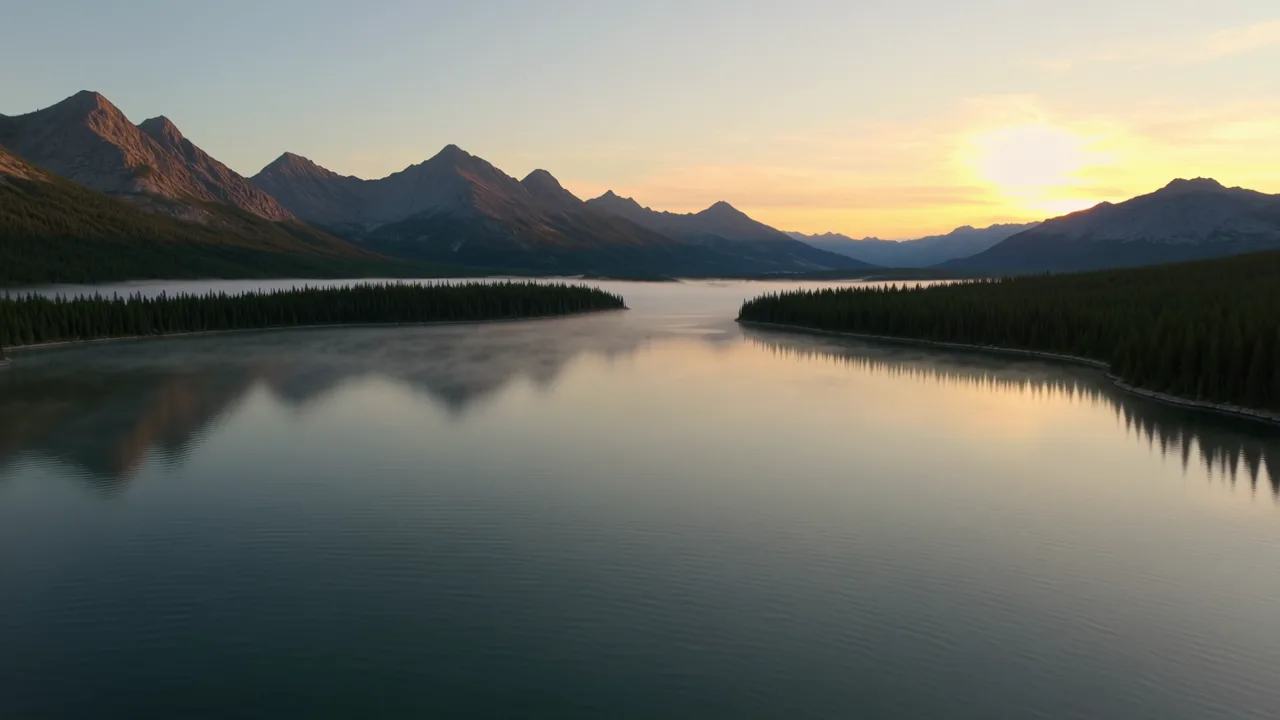
Text to video at 1080p: "A drone shot over a mountain lake at sunrise, mist over the water."
Where to find it: log in to SocialArt.ai, open the Video Studio and pick Kling 4.0 in the model list. Kling 4.0 is also one of the models in Video Recast , the tool that replaces the people in a video with the people from your photos.
Most video models are good at one way of working: you either describe a scene or you animate a picture. As soon as you want a specific face in a specific move, or want to change one thing in a clip you already like, you end up hopping between models and tools.
Kling 4.0 puts four modes behind four tabs: Text, Image, Reference and Edit. The prompt and resolution work the same in each, and so does the duration, except in Edit, where the result keeps the length of your video. You can start with a quick text draft and move on to references or an edit without learning a new model.
Four Modes, One Model
1 Text to video: start from a sentence
Describe the scene and get a clip of 3 to 30 seconds in 16:9, 9:16, 1:1 or 21:9. It is the fastest way to try an idea, and with 9:16 the result is ready for Reels, Stories and TikTok without cropping.
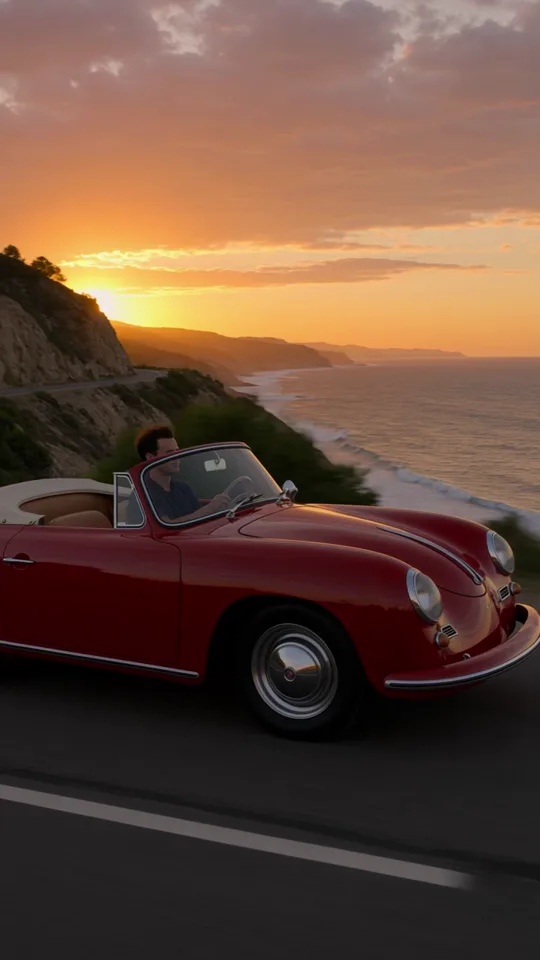
720p, 9:16, three seconds, from the prompt "A red vintage convertible drives along a coastal road at golden hour, cinematic tracking shot." Subject, action, place, light and one camera move: that short recipe is enough for a usable first take.
2 Image to video: animate a frame you already have
Upload a start image, or pick one from your image history, and describe what happens next. Add an optional end image and Kling 4.0 moves from the first frame to the last: a product turning into its packaging, a character walking from one room into the next. This tab has no aspect ratio setting, so start from an image in the format you want to post.
3 Reference to video: your cast, your moves
Give Kling 4.0 up to 10 reference images and up to 5 reference videos (3 to 30 seconds each, 30 seconds combined) and combine them in one new scene. A character sheet, a product, a location photo and a clip with the motion you want can all go into the same generation. Pick an aspect ratio, or leave it on Auto to take the format from your references. Images and videos from your history work as references too.
4 Edit: change a clip, keep the rest
Upload a video of 3 to 30 seconds (MP4 or MOV, up to 100 MB, at least 700 pixels wide and high) or pick one from your history, and say what should change: the background, the weather, an outfit, the time of day. Add reference images if the change has to look like something specific. There is no duration to set: the result is as long as your source.
Prompt Tips That Make a Difference
Call your references by number
Images are @Image1, @Image2 and so on, videos are @Video1, @Video2, in the order you added them. Use those names in the prompt and give each reference a job:
"The woman in @Image1 walks through the street in @Video1, wearing the coat from @Image2. Keep her face and hairstyle the same throughout."
In an edit, say what must stay
In the Edit tab your video is @Video1 and any reference images are @Image1, @Image2. Write one direct instruction, then name what must not change, so the model does not touch more than you asked for:
"Replace the jacket of the man in @Video1 with the jacket in @Image1. Keep his face, his movements, the camera and the background unchanged."
Animate the image, don't describe it again
In the Image tab the start image already shows what the scene looks like. Spend the prompt on what happens: how the subject moves, what changes around it, what the camera does. With an end frame, describe the transition between the two.
One camera move per shot, beats for long clips
Pick one move per shot (a dolly-in, a tracking shot, an orbit or a locked-off camera) and give characters a fixed label instead of "he" or "she". For a clip of 15 or 30 seconds, write the action as a few clear beats in order. Not in the mood to write it yourself? The Prompt Agent in the studio knows Kling 4.0 and its four modes and writes the prompt with you, references included.
720p or 1080p?
720p for finding the shot
Costs less per second, so it is the place to test prompts, references and camera moves. Keep the draft short, and change one thing at a time until the motion is right.
1080p for the keeper
Render the final version in 1080p when it goes on a big screen, into an ad, or through the Video Editor with text on top, where the extra detail keeps small type and fine textures sharp.
Good to Know
Up to 30 seconds in one take
Choose any length from 3 to 30 seconds. That is enough for a full Reel in one generation, without stitching short clips together. An edit always keeps the length of its source.
The cost is on the button
Kling 4.0 is billed per second, at a rate set by the resolution. With reference videos, or in the Edit tab, the seconds of video you put in count as well, at a lower rate per second and at least twice the output length; an edit is billed on twice the length of its source. The resolution menu shows the rate and the Generate button shows the exact amount before you start.
Straight from and to your history
Start frames, reference images, reference videos and the video to edit can all come from your history, so a still from this morning can be a reference this afternoon. Every result lands in your video history, ready to download, cut in the Video Editor or post with Social Post.
What to Make with It
Vertical Reels from a prompt
Text to video in 9:16 for scenery, mood clips and b-roll that fit the feed as they are.
Product shots that move
Use your packshot as start frame and the lifestyle shot as end frame, and let Kling 4.0 fill in the move between them.
Your character, every time
Put your character photos in as @Image1 and @Image2 and give them a new scene in each clip.
Borrow a motion
A clip of a walk, a dance or a camera move as @Video1 shows the model how the scene should move.
New look, same footage
Change the season, the background or an outfit in a clip you own, without filming it again.
Straight to the feed
Add titles and music in the Video Editor and schedule the result with Social Post.
Frequently Asked Questions
What can Kling 4.0 do in SocialArt.ai?
Four things, each in its own tab: text to video, image to video from a start frame and an optional end frame, reference to video from up to 10 images and 5 videos, and editing a video you upload.
How long can a Kling 4.0 video be?
You pick 3 to 30 seconds. An edit has no duration setting: the result keeps the length of the video you edit, which can be 3 to 30 seconds.
Which resolutions and aspect ratios are there?
720p and 1080p. Text to video offers 16:9, 9:16, 1:1 and 21:9; reference to video adds Auto, which takes the format from your references. Image to video and edits have no aspect ratio setting.
How do I use my reference images and videos in the prompt?
By number, in upload order: @Image1, @Image2 for images and @Video1, @Video2 for videos. In the Edit tab the video you edit is @Video1 and the optional reference images are @Image1, @Image2.
What does a Kling 4.0 video cost?
Credits per second, at a rate set by the resolution. With reference videos or in the Edit tab the input seconds are billed too, at a lower rate per second. The Generate button shows the exact amount before you start.
Write it, animate it, reference it, edit it.
Open the Video Studio, pick Kling 4.0 and start with a short 720p draft.
Share this article
Related Articles
Video Recast: Put Your Characters in Any Video
Keep the moves, the camera and the scene of a clip and swap the people for your own characters.
Prompt Agent: Your AI Assistant for Perfect Image & Video Prompts
Let the built-in agent write your Kling 4.0 prompts, @Image1 and @Video1 references included.