
Characters
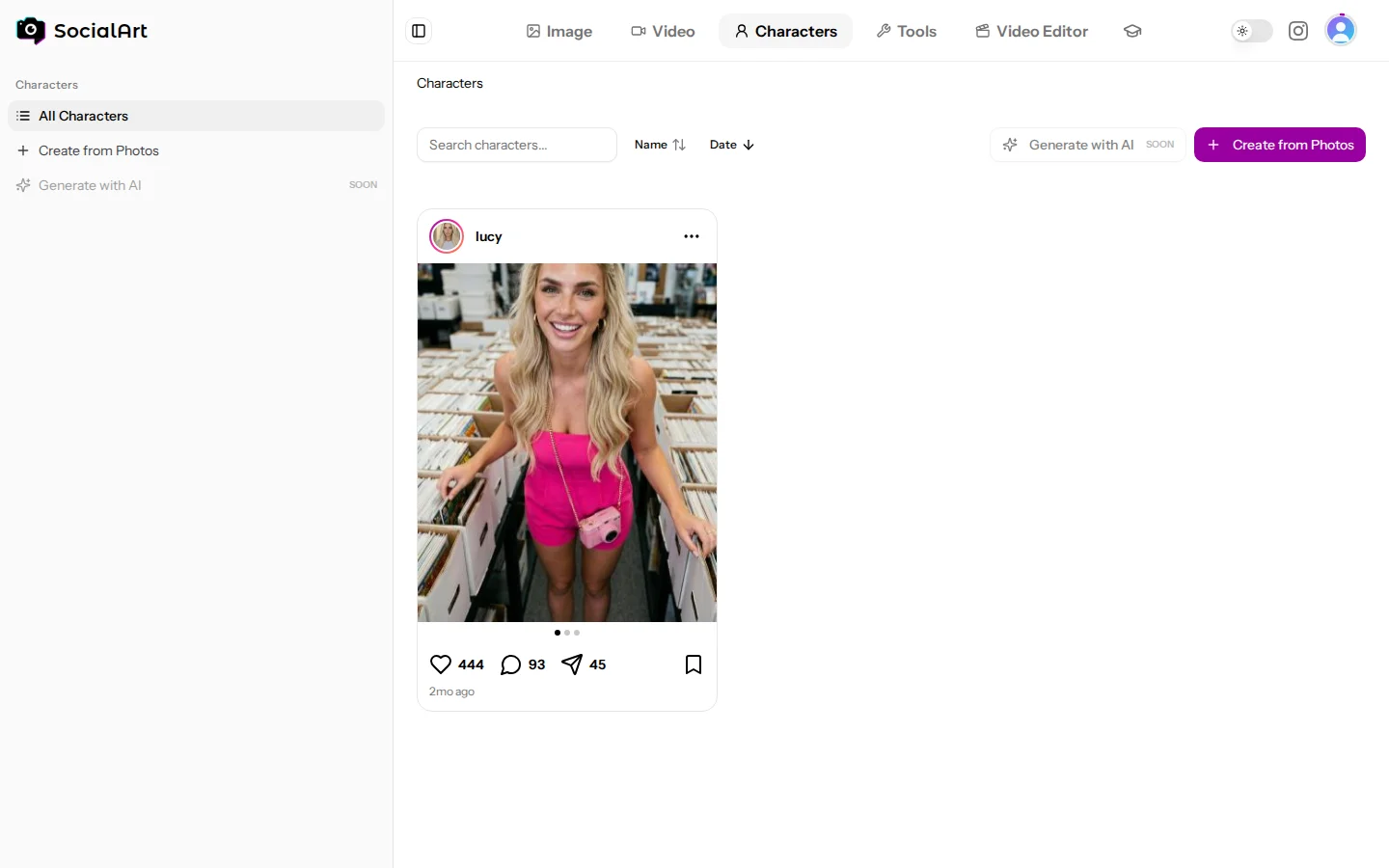
A character is a saved person you can reuse across image and video models so they look the same in every generation. Manage them under Characters in the main menu or at https://socialart.ai/characters.
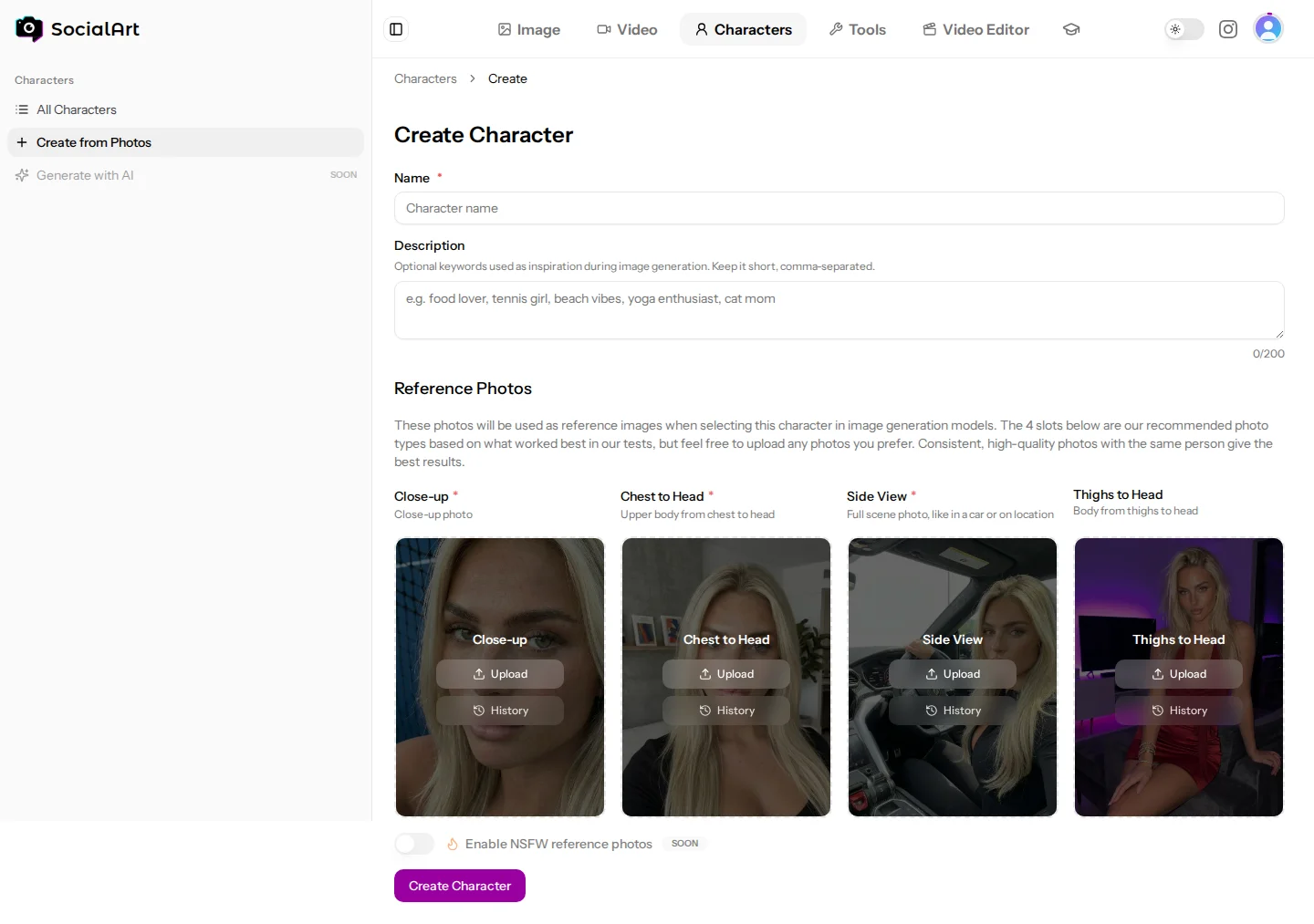
- New character. Give the character a name and optionally a few comma-separated keywords as description (for example "food lover, yoga"), then add reference photos: a Close-up (front face), a Side View and a Chest to Head shot are required; a Thighs to Head shot is optional. Photos can be uploads (up to 20 MB each) or images from your history; uploads start as soon as you pick them. Creating characters requires an active subscription; editing one you already own does not. Click a reference photo to see it full size, and use Download under it (or in the full-size view) to save the original. A character that came with a bought AI influencer is kept as delivered: it cannot be changed or deleted, but you can download its originals and build your own character from them.
- Use a character by selecting it in the reference section of an image or video form. The model receives the character's photos as references.
- Library. Search your characters and sort them by name or date. Each card shows the reference photos; the card menu edits or deletes the character.
- Tips. Use sharp, evenly lit photos with a neutral background and no sunglasses or hats. Generate the reference photos in the studio first if you are building a fully AI character.
Bought AI influencers
The AI Influencer Marketplace (https://socialart.ai/marketplace) sells finished AI influencers with a full photo set, a persona and a ready-made Character, each sold exactly once. After a purchase the Character appears in your library and the photos under My AI influencers (https://socialart.ai/my-influencers). Full guide: AI Influencer Marketplace
Influencer Remix
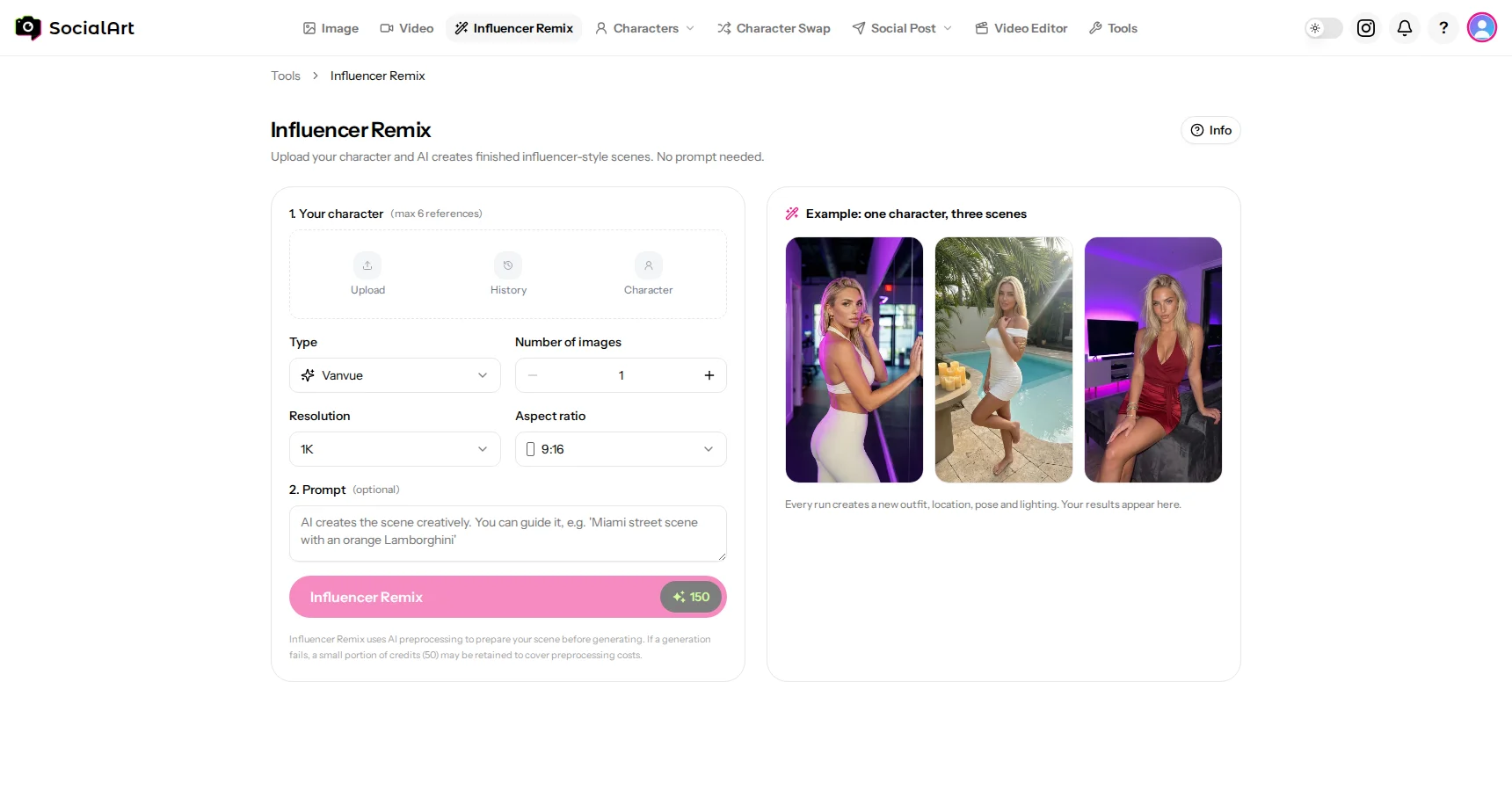
Influencer Remix creates finished influencer-style scenes from a character or reference photos. No prompt is needed; with the Vanvue type you can add one to steer the scene.
- Open Influencer Remix from the main menu or the Tools page (https://socialart.ai/tools/influencer-remix), select a saved character or upload up to 6 reference photos, pick a type (Vanvue: completely AI generated, or Instagram: UGC trained by real influencers), the number of images, aspect ratio and resolution, and generate. The results appear on the same page.
- The same model is also available in the Image Studio: choose Influencer Remix in the model picker.
- Each run produces a new scene: outfit, location, pose and lighting are chosen automatically to look like real creator content.
- Generate up to 4 images per request; the credit cost is shown before you generate.
- Because Influencer Remix uses AI preprocessing, a failed generation may retain a small part of the credits; the rest is refunded.
Character Swap
Replace any person in a photo with your character while keeping the pose and scene. No prompt needed. Full guide: Character Swap
Consistent people in video
- Kling 3.0 elements: attach up to 2 characters (a frontal photo plus up to 3 references each) to keep faces consistent in the clip.
- Kling Motion Control: animate a character image with the movement of a video.
- Reference-to-video models (Seedance 2.0 and 2.5, Wan 3.0, Hailuo 3 Max, Happy Horse) accept character photos as reference images.
- Cloned voices let Kling 3.0 and Kling v2.6 Pro characters speak with a specific voice (see Video Studio).